Disclosure: This article contains affiliate links. As an Amazon Associate, I earn from qualifying purchases.
Editorial note: This guide is based on product specifications, seller information and compatibility requirements. We have not personally tested the KVM switch featured below. Product prices, stock and specifications may change.
Best KVM Switch for Two Laptops — Quick Verdict
Choosing the best KVM switch for two laptops depends on your monitor setup, USB-C compatibility, charging requirements and whether you use Windows or macOS.
If you use two laptops at the same desk, a USB-C KVM switch can help you share external monitors, a keyboard, mouse and other accessories without constantly swapping cables.
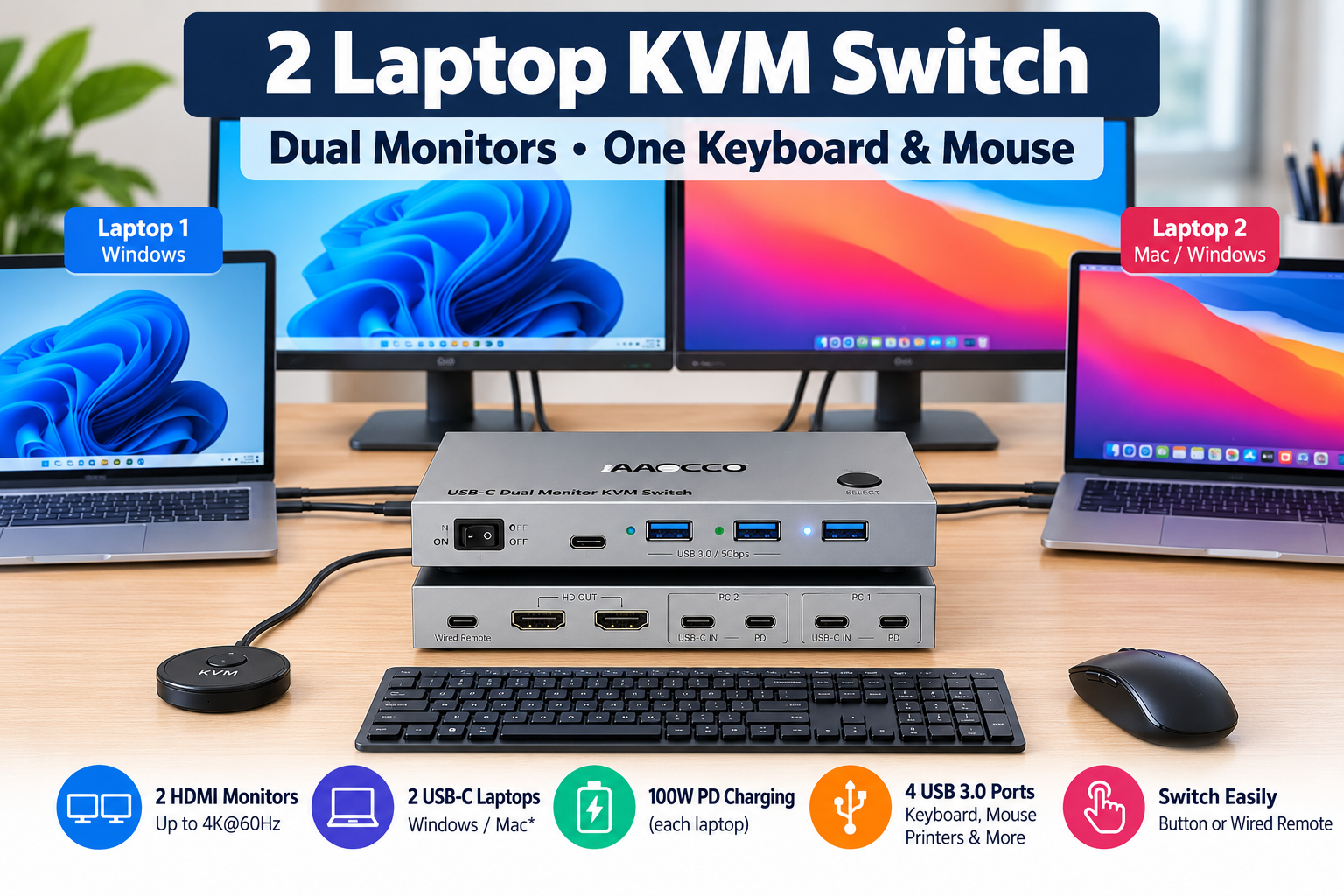
For a setup involving two compatible Windows laptops and two external HDMI monitors, the AAOCCO 2-Laptop USB-C Dual Monitor KVM Switch is an option worth considering.
It offers two USB-C laptop connections, two HDMI monitor outputs, shared USB ports and separate USB-C Power Delivery inputs.
However, compatibility is important. Not every laptop supports dual external displays through a single USB-C connection, and macOS has additional limitations with MST-based switches.
Our recommendation: Check both laptops’ USB-C video capabilities before purchasing any dual-monitor KVM.
AAOCCO 2-Laptop Dual Monitor USB-C KVM Switch
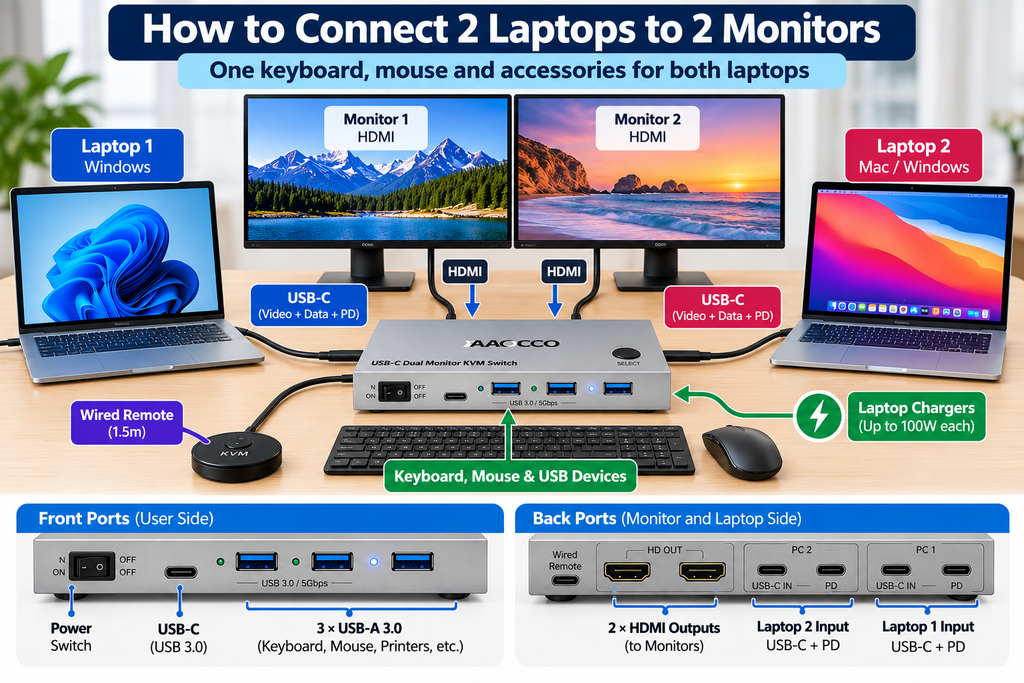
Illustration of a two-laptop KVM setup. Connection layout may differ from the actual product. Refer to the manufacturer’s instructions before connecting equipment.
Best for: Two compatible Windows laptops sharing two HDMI monitors and USB accessories.
The AAOCCO switch combines the functions of a USB-C docking station and a two-computer KVM.
Instead of disconnecting your monitors, keyboard and mouse every time you change computers, you connect both laptops to the KVM and switch between them using a button or wired remote.
Key Specifications
| Feature | Advertised specification |
|---|---|
| Computer connections | 2 USB-C laptops |
| Monitor outputs | 2 HDMI |
| Display resolution | Up to dual 4K at 60Hz |
| USB connections | 3 USB-A and 1 USB-C, USB 3.0 |
| Charging | Two USB-C PD inputs, up to 100W input each |
| Switching | Physical button or wired remote |
| Operating systems | Windows, macOS, Linux, ChromeOS, with limitations |
These are advertised capabilities, not independently measured performance.
Advantages
- Designed for two USB-C laptop connections.
- Supports two HDMI monitors with compatible Windows laptops.
- Shares keyboard, mouse and other USB peripherals.
- Includes a wired switching remote.
- Has separate charging inputs for the two laptops.
- Includes two USB-C connection cables.
Limitations
- Requires compatible USB-C video-output capabilities.
- macOS does not support two independent extended displays through this MST arrangement.
- Actual charging power may be lower than the advertised 100W input.
- HDMI cables and laptop power adapters are not shown in the supplied package list.
- The manufacturer’s warranty period has not been confirmed.
Our Verdict
The AAOCCO is a reasonable option to investigate if you want one desk setup for two compatible Windows laptops.
Its strongest feature is the pair of USB-C computer connections. Some competing KVM docking stations only provide a USB-C connection for one laptop and separate video inputs for a desktop PC.
The main concern is compatibility. Before buying, check that both laptops can output video through USB-C and support the required multiple-display configuration.
Check the AAOCCO USB-C KVM Switch on Amazon Australia
Price observed during research: $139.99 AUD. Check Amazon for current pricing and availability.
How Does a KVM Switch Work With Two Laptops?
KVM stands for Keyboard, Video and Mouse.
A KVM switch allows two computers to share compatible external displays and input devices.
For example, you may have:
- One work laptop.
- One personal laptop.
- Two HDMI monitors.
- One USB keyboard.
- One USB mouse.
Both laptops connect to the KVM. Your monitors and USB accessories connect to its output ports.
Pressing the switching button changes which laptop controls the shared equipment.
This means you can switch between work and personal computers without reconnecting your monitors and peripherals.
The AAOCCO listing specifies that it displays one selected laptop at a time. It does not show one laptop on each monitor simultaneously.
Can You Connect Two Laptops to Two Monitors?
Yes, provided your chosen KVM switch and both laptops support the required connections.
For the AAOCCO model, each laptop connects through USB-C, while the two external monitors connect through HDMI.
The manufacturer advertises dual 4K at 60Hz, but the actual available resolution depends on the laptop, USB-C video bandwidth, cables and connected displays.
A USB-C port that supports ordinary data transfer or charging does not necessarily support external video output.
For this type of MST-based KVM, look for compatible DisplayPort Alt Mode support and the ability to drive multiple external displays.
Important: MacBook Compatibility
If you use a MacBook, be particularly careful when purchasing an MST-based USB-C KVM switch.
The AAOCCO listing states that Apple M1 and M2 Mac systems using this connection support mirrored output rather than two independent extended displays.
More generally, macOS does not provide the same MST extended-desktop behaviour as Windows.
If you want two independent external screens on a MacBook, choose a solution specifically designed and verified for your exact Mac model and display requirements.
Do not assume that a switch labelled “Mac compatible” supports two extended external monitors.
Does This KVM Charge Both Laptops?
The AAOCCO has separate USB-C Power Delivery inputs for the two connected laptops.
According to the seller, users connect their existing laptop charging adapters to these inputs.
Although the ports are advertised with up to 100W power input, the seller states that actual charging power reaching a laptop may be approximately 73–80W.
That may be sufficient for many ordinary laptops, but some high-performance laptops require more power.
If your computer requires a high-wattage proprietary charger, check whether USB-C charging is supported and whether the available power is sufficient.
What’s Included in the AAOCCO Package?
The manufacturer’s illustrated package list shows:
- One AAOCCO USB-C KVM switch.
- Two USB-C cables.
- One 1.5-metre wired remote.
- One user manual.
HDMI cables and USB-C charging adapters are not shown in the supplied package list.
Check with the Amazon seller if you need confirmation of the full package contents.
What to Check Before Buying a KVM Switch
1. Two Genuine Laptop Inputs
Some products advertised as two-computer KVM switches are designed for one laptop and one desktop.
If you want a simple USB-C connection from each laptop, make sure the device has two suitable USB-C computer inputs.
2. Number of External Monitors
A single-monitor KVM cannot automatically support two external displays.
For two-monitor setups, choose a device specifically designed for dual-display operation.
3. USB-C Video Support
Make sure both laptops support the required video signal through USB-C.
Check the laptop’s official technical specifications rather than relying on the appearance of its USB-C port.
4. Charging Requirements
Check whether the KVM includes a charger or requires your existing laptop power adapters.
Also confirm whether the available power is sufficient for your computers.
5. Windows and Mac Differences
A KVM that provides extended dual monitors on Windows may only provide mirrored output on macOS.
Always check compatibility with the exact operating system and laptop model.
6. Cables and Accessories
Check which USB-C, HDMI and power cables are included.
Using unsuitable cables can cause connection problems, reduced resolutions or missing displays.
Frequently Asked Questions
Can a KVM switch connect two laptops?
Yes. A suitable KVM switch allows two laptops to share external monitors, a keyboard, mouse and other compatible peripherals. The exact connections depend on the model.
Can I use two monitors with a KVM switch?
Yes, if the switch supports dual-monitor output and both computers provide the necessary video signals.
Does a KVM switch require software?
Some KVM switches work without installing additional drivers. Others use particular drivers or software, especially models relying on DisplayLink technology.
The AAOCCO model is advertised as plug-and-play, provided the laptop and display connections meet its requirements.
Can I use a KVM switch with an HP laptop?
Potentially. Compatibility depends on the specific HP model and the capabilities of its USB-C port.
Check its DisplayPort Alt Mode, charging and external-display specifications before purchasing.
Will a KVM switch slow down my laptop?
A correctly configured KVM should not normally reduce the laptop’s CPU performance. However, display resolution, refresh rate and USB transfer performance may be limited by the KVM’s specifications and connection bandwidth.
Is a KVM switch better than a docking station?
They solve different problems.
A docking station typically expands connections for one computer. A KVM switch allows multiple computers to share peripherals.
A KVM docking station combines both functions, which can be useful for people switching between two laptops.
Final Verdict
A KVM switch can make a two-laptop home-office setup much more convenient.
The AAOCCO 2-Laptop Dual Monitor USB-C KVM Switch is worth considering for compatible Windows laptops because it provides two USB-C inputs, shared USB accessories, dual HDMI outputs and separate charging inputs.
But it is not a universal solution.
Before purchasing, check your laptop’s USB-C video output, monitor requirements, operating system and charging needs.
View the AAOCCO 2-Laptop KVM Switch on Amazon Australia
This recommendation is based on documented product features and compatibility information, not hands-on testing. Always confirm current specifications with the seller before ordering.